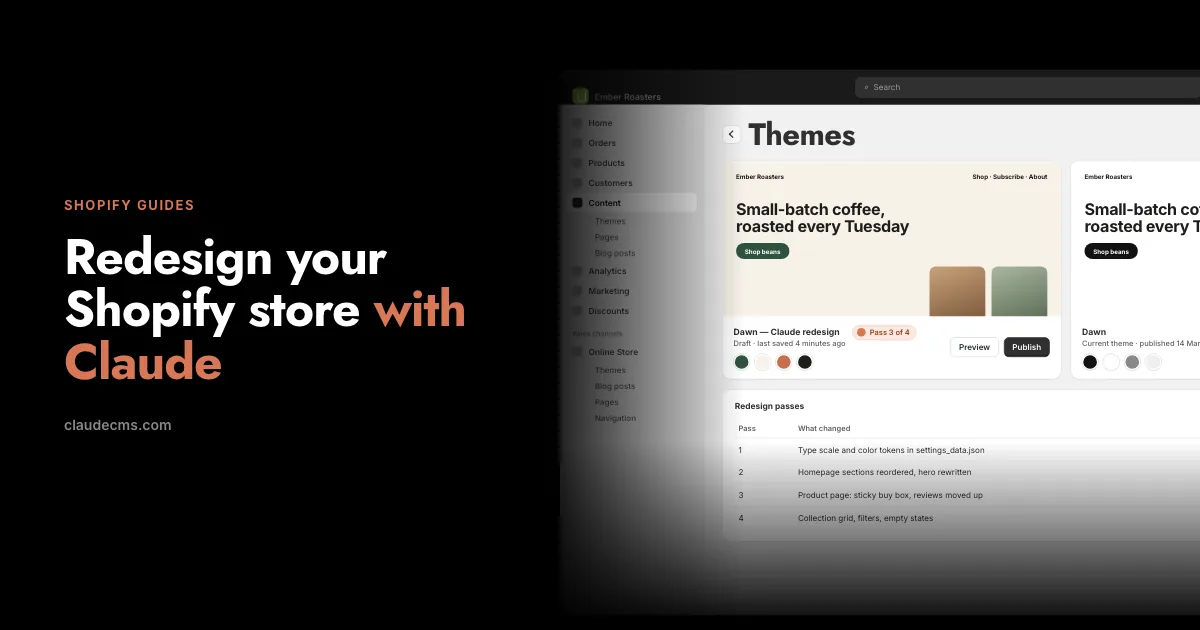
Every Shopify merchant works in much the same admin, whatever they sell and however they sell it. Connect your store to Claude CMS and you get one of your own: a store admin in your account that you reshape by telling Claude how you run your shop. What you use most comes first, what you never open goes away, and the standard layout is always one step back.
A store admin is built for everybody, which means it is built for nobody in particular. The person selling forty candles from a spare room and the team running four thousand products open the same screens in the same order. Most of us use a handful of them every day and scroll past the rest.
A custom admin fixes that in the obvious way: it starts from how you run the shop and arranges itself around that. Usually that means a developer and a budget. With Claude it is a sentence.
Where your admin lives
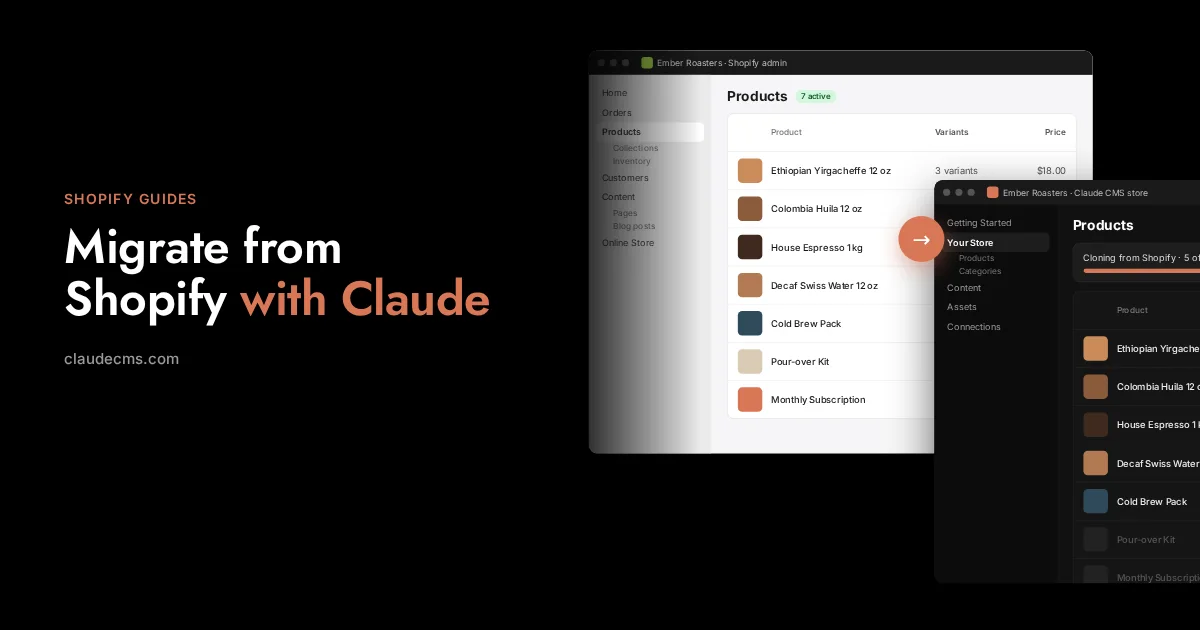
When you connect a Shopify store to Claude CMS, the store appears in the Shop area of your Claude CMS account. It reads from your Shopify store, so what you see there is your real catalogue and content, in one place: your products, your discounts, your pages and blog, your menus and your theme.
Think of it as the view of your store that sits beside Claude. You look things over there, and when something needs to change you ask Claude, as in the other Shopify guides. This guide is about making that view your own.
Your Shopify admin stays as it is. This is a second, lighter admin that belongs to you. Nothing here changes what you or your staff see when you sign in to Shopify.
Shape it by asking
There are no boxes to drag around and no settings screen to work through. You say what you want in plain words and Claude rearranges the admin for you. You can start from the Shop area itself, where you can ask to customise your admin, or from any Claude conversation where your store is connected.
SayCustomise my store admin: put the things I use every day first and hide the sections I never open.
SayRename the sections in my store admin to the words we actually use in the shop.
SayAdd a note at the top of my store admin with this week’s jobs, and shortcuts to the places I open most.
Refresh the page and the admin has changed. If it is not quite right, say so and Claude adjusts it. It is a conversation, so you keep going until it fits, and you can come back and change it again when the shop changes.
What you can make your own
The idea is simple: the admin should match the way you work, not the other way round. Today that covers how it is arranged:
What comes first
The order things appear in, and the part of your store that opens when you arrive.
What you see
Hide the parts you never use, so the admin is as small as your shop needs it to be.
What it is called
Rename things to match the words you and your team already use.
Your own notes and shortcuts
A panel of your own: a reminder, the week’s jobs, and links to the places you go most.
This is where customising starts, not where it ends. If there is something you would like to shape that is not possible yet, tell us. That is how the list grows.
Nothing to break
Your layout is an arrangement, not a rebuild. It sits on top of the standard admin and is kept apart from your store, so changing it cannot touch your products, your orders or anything your customers see.
Every version is kept. If you preferred last month’s layout, ask Claude to bring it back.
The standard layout is always there. Go back to it at any time, from the admin itself or by asking Claude.
Each store has its own. If you run more than one store, shape each to suit the way it is run.
It is yours to change. Only the owner of the store can rearrange its admin.
Three shapes to start from
If you are not sure what to ask for, start with the shop you actually run. Three examples:
A one-person shop
Small and quiet
Products first, everything you never open hidden, and a note with the jobs you do every Monday.
Sale season
Offers up front
Discounts first for the weeks that matter, with a shortcut to the sale on your store. Ask Claude to put it back afterwards.
A content-led shop
Words before stock
Pages and blog first, renamed to what your team calls them, with the rest tucked out of the way.
None of these is a template. They are what a sentence or two to Claude gets you, and the point is that yours will be different.
Questions
Does this change my Shopify admin?
No. The admin Shopify gives you stays exactly as it is. The admin you customise is the one in your Claude CMS account, which reads from your connected store.
Do I need to know any code?
No. You describe the change in plain words and Claude makes it.
Can I undo a change?
Yes. Every version of your layout is kept, so Claude can bring back an earlier one, and you can return to the standard layout at any time.
Will it affect my store or my customers?
No. A layout only changes how your own admin is arranged. Your storefront, your products and your orders are not touched.
Can each of my stores have its own admin?
Yes. A layout belongs to one store, so each connected store can be arranged differently.
Start here
A custom admin starts with a connected store. That is a one-time job: one click from the Connections tab if you already have a Claude CMS account, or step by step in Connect your Shopify store. Then open the Shop area and tell Claude how you want it.
What people do with their store once it is connected
Step-by-step guides, each one a conversation with Claude: a custom admin, SEO, sales analysis, landing pages, a redesign, everyday edits, and moving your store to Claude CMS.